Tax is one of the simplest lines to add to an invoice, and one of the easiest to get wrong, because the calculation is straightforward but the rules about when it applies are not. This guide covers how tax is normally shown on an invoice. It does not, and cannot, tell you whether you personally need to charge it.
Tax rules vary by country, by state or region, and by what you are selling, and they can also depend on things like how much you have sold in a given place. Nothing here is tax advice. Check your local tax authority or talk to an accountant before you decide whether to charge tax and at what rate.
Where tax goes on an invoice
Tax sits below your subtotal and above your final total, as its own labeled line:
| Amount | |
|---|---|
| Subtotal | $1,000.00 |
| Sales tax (8%) | $80.00 |
| Total | $1,080.00 |
The tax is calculated as a percentage of the subtotal, then added to reach the total due. Showing it as its own line, rather than folding it into your rates, lets the client see exactly what portion of the invoice is tax.
Labeling the tax line clearly
Use the name your local rules actually use, such as "Sales tax," "VAT" or "GST," rather than a generic word like "Tax," and show the rate next to the label, such as "VAT (20%)." This makes the invoice easier for your client's own bookkeeping to process, and it is often expected on invoices in places where a specific tax scheme applies.
More than one tax on the same invoice
Some places apply more than one tax to the same sale, such as a state tax and a separate local tax, or a national tax alongside a regional one. Where that applies to you, list each tax as its own line with its own rate and amount, rather than combining them into a single blended figure, and add each one into the total. This keeps the invoice accurate if the rates for either tax change independently later.
Why the rules vary so much
Whether you need to charge tax at all, and at what rate, typically depends on some combination of: where your business is based, where your client is based, what you are selling (since goods and services are sometimes taxed differently, and some categories are exempt), and sometimes how much you have sold into a particular place. Cross-border and cross-state sales are where this gets most complicated, since two different sets of rules can both be relevant to the same invoice. None of this is something a general guide can answer for your specific situation, which is why checking with your local tax authority or an accountant matters more here than almost anywhere else on an invoice.
Adding tax in the Invoice Generator
 Inside Invoice Generator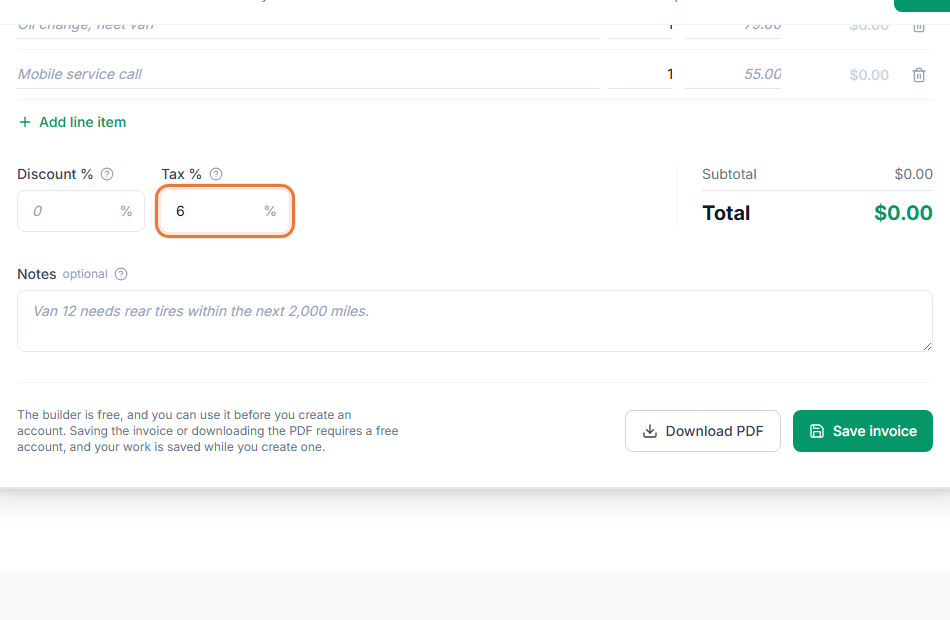
- Confirm your tax situation first. Decide, based on your local rules or your accountant's advice, whether tax applies and at what rate.
- Open the Invoice Generator at toolstohelp.me/invoice/ and build your invoice with your line items as usual.
- Add your tax rate. Label it with the correct name for your location and enter the rate, and the tax amount calculates on your subtotal automatically.
- Check the total. Confirm the subtotal, tax and total all match what you expect before sending.
- Save and send the invoice. Create a free account to save it, then share the link or download the PDF.
Keeping your own records straight
Whatever tax you charge, keep a record of the rate you used and why, alongside the invoice itself. If a tax authority or an accountant ever asks about a specific invoice, having the reasoning next to the number saves you from having to reconstruct it later.