A QR code menu replaces or supplements a printed page of dishes with a code that opens your menu on a customer's own phone. Scan it at the table, and the menu opens in their browser, no app, no waiting for a server to bring a physical copy.
One thing worth being clear about upfront: the QR Code Generator makes the code. It does not host or design your menu itself. You still need somewhere for the code to point, a page on your website or a PDF hosted online. Here is how to put the two pieces together.
How a QR code menu works
The code itself just holds a web address. When it opens, it sends the phone's browser to whatever page or file that address points to. That means the quality of your "QR code menu" depends entirely on what is at the other end of the link, not on the code.
Where to point the code
- A page on your website. The most flexible option. If your site already has a menu page, use that address. It is easy to update later and reads well on any phone screen.
- A hosted PDF. If you have a print-ready PDF menu, upload it somewhere it can be reached by a public link, such as your website's file storage or a cloud storage service with public sharing turned on, and point the code at that link.
Either way, open the link yourself on a phone before you print anything, to check that it loads quickly and reads well on a small screen. A PDF designed for a printed page can be hard to read zoomed in on a phone; a simple web page is usually easier for customers to scan through.
How to make the code
 Inside QR Code Generator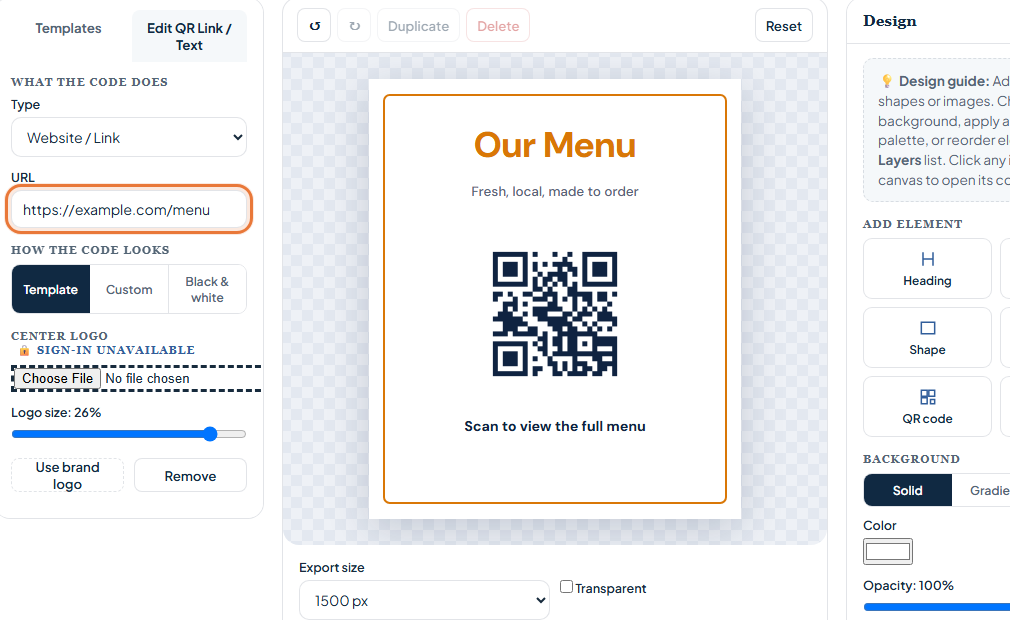
- Open the QR Code Generator with the Menu Card template. The button below loads the Design Studio with a Menu Card template ready to edit.
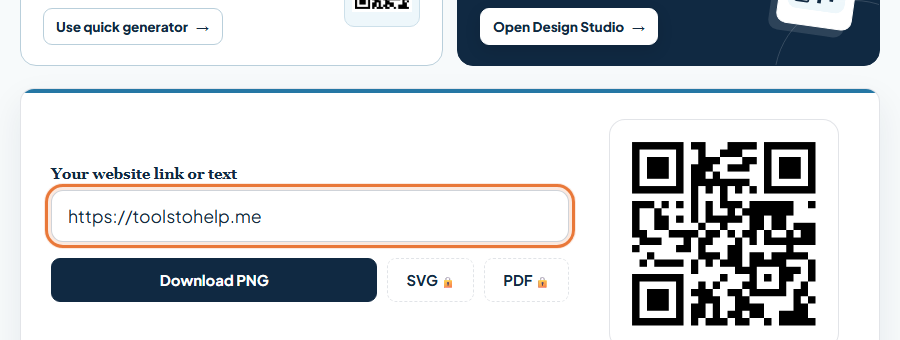
- Enter your menu link. Paste the web address of your menu page or hosted PDF into the link field.
- Edit the card text. Double-click any text on the template to add your restaurant name or a line such as "Scan for our menu".
- Test it. Scan the code with your own phone and check that the menu loads and is easy to read.
- Download or print. Download as a PNG for table cards, or print directly from the generator.
Table tents and other formats
A flat card works well on a wall or counter. For tables, a folded table tent stands on its own and is harder to knock out of place. The generator also has a free Table Tent template, at toolstohelp.me/qr.html?template=sign-order, which works well for a menu code or for pointing customers to an ordering page.
Keep a printed menu available
Not every customer wants to scan a code, and some phones do not have a working camera, signal, or enough battery to load a page at the table. Keep a small stack of printed menus on hand so a QR-only menu never turns into a barrier to ordering.
Updating your menu without a new code
Because the code just holds a link, you can change what customers see without reprinting anything, as long as the link itself stays the same. Update the page or replace the file at that same address, and the existing printed codes keep working and show the new menu the next time someone scans.
If you ever do change the underlying link, for example moving to a new website, you will need a new code. Keep that in mind before deciding where to host your menu.
Other ways to use the same code
Because the code is nothing more than a link, the same one you use for a menu can double for other things, or you can make a second code for each purpose:
- Online ordering. Point a code at your ordering page for takeout or delivery, useful on a window sign for when the dining room is closed.
- Reviews. A code near the register that opens your review page makes it easy for a happy customer to leave one on the way out.
- A daily specials page. If specials change often, keep them on a separate page from your main menu and link a second code to that instead, so the main menu code does not need constant edits.
Whatever you point a code at, test it from your own phone first, the same way you would for the main menu code.