A QR code on a business card saves someone a step. Instead of typing your number into their phone or photographing the card to read later, they scan the code and your details land straight in their contacts.
There are two ways to set this up, and they do different things. Here is how to pick the right one and build it.
Contact card (vCard) or a link: which to use
A vCard code holds your contact details directly, name, phone, email, company, and saves them straight to the phone's address book when scanned. No website or app is involved. This is the better choice for a business card, because the entire point is to end up in someone's contacts.
A link code opens a web address, such as your website or your LinkedIn profile. This works well if you would rather send people to a page with more information than a contact card holds, a portfolio, your services, a booking page, but it does not save a contact on its own.
Many people put a vCard code on the front of the card and print a website address as plain text underneath, or use a link code on the back. Pick whichever matches what you most want the person to do after they scan.
What to put in the vCard
- Name. First and last name, so the contact saves correctly rather than as one long string.
- Organization and title. Your company name and job title. Both are optional but help the person remember who you are.
- Phone and email. Include at least one way to reach you directly. Double-check the number and address for typos before you download.
- Website. A link to your site or portfolio, if you have one.
- Address. Only worth including if people need to visit you in person. Skip it otherwise; a full mailing address on a vCard rarely gets used.
Keep the fields you actually want someone to use. A vCard with ten fields is not more useful than one with four, it just takes longer to fill in.
How to make the code
 Inside QR Code Generator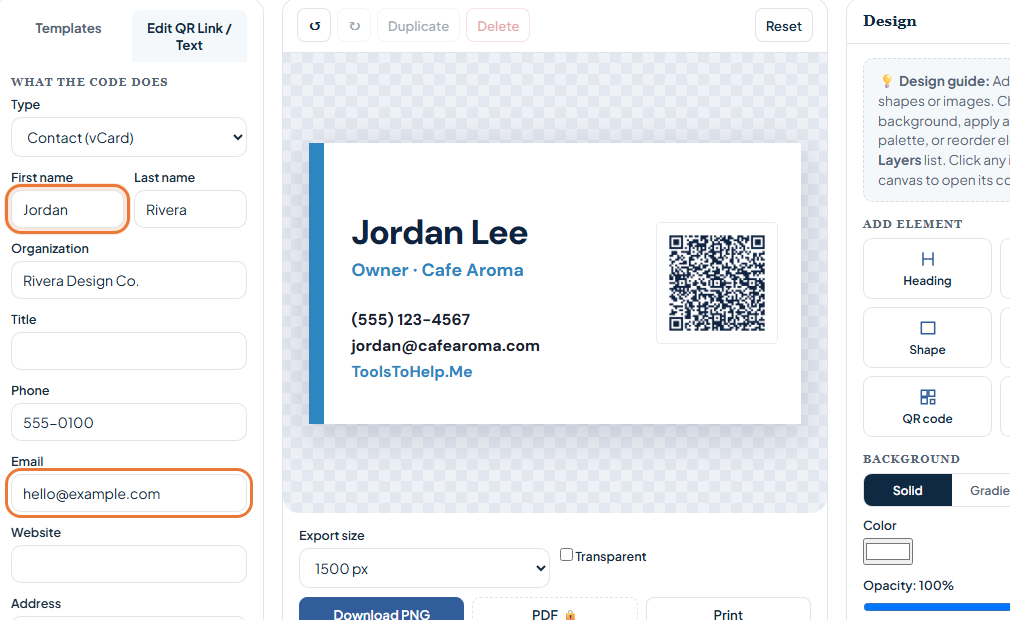
- Open the QR Code Generator with the contact card type selected. The button below opens the Design Studio with the vCard type and the Business Card template already loaded.
- Fill in your details. Name, organization, title, phone, email, website and address, as needed.
- Edit the card text. Double-click any text on the template to change it, for example to add a tagline or adjust the layout to match your existing card design.
- Test the code. Scan it with your own phone and confirm your contact card appears correctly before you order printing.
- Download or print. Download the design as a PNG, or use a free account for an SVG or PDF file if your printer asks for one.
Sizing the code for a 3.5 x 2 inch card
A standard business card is 3.5 by 2 inches. At that size, keep the QR code itself around 0.8 to 1 inch square, big enough to scan at arm's length without crowding out your name and contact details printed as text alongside it.
Leave a small clear margin around the code, and avoid placing it across a fold or near the edge, where trimming during printing can cut into it. If you are unsure how a design will print, order a small test batch before committing to a large one.
Testing before you order print
Test on more than one phone if you can, since camera quality varies. Scan the code from a printed proof if your printer provides one, not just from the screen, since paper stock and ink can change contrast slightly.
If the code does not scan cleanly, the most common cause is a busy background behind it or too small a size for the printed contrast. Increase the size or simplify the surrounding design before your final print run.
Using the same code beyond the printed card
Once you have downloaded the image, it works anywhere you can place a picture, not just on paper. Common places to reuse the same code:
- Email signature. A small version next to your name gives anyone reading your email a one-scan way to save your contact.
- LinkedIn or social profiles. Add it to a banner image or a pinned post.
- Event booths and name badges. Useful at a conference or trade show, where people meet you quickly and want to save your details without stopping to type.
- The end of a presentation slide. Let an audience scan your details as they are walking out, rather than searching for your card afterward.
Because the code is static, the same PNG or SVG file works in every one of these places. There is no need to make a separate code for each use, as long as your details have not changed.