A Wi-Fi QR code holds your network name and password. When someone points a phone camera at it, the phone offers to join the network. Nobody has to read a long password off a sticker, and nobody types it wrong.
It takes about five minutes to make one. You need your network name, your password, and a phone to test the code.
What you need before you start
- Your network name (SSID). This is the name people see in their list of Wi-Fi networks. It is often printed on a sticker on the router. Copy it exactly, including capital letters and spaces.
- Your Wi-Fi password. Also usually on the router sticker, unless you changed it. Passwords are case sensitive.
- The security type. Almost every current router uses WPA2 or WPA3, which both work with the WPA setting. If you are not sure, WPA is the right choice.
Tip: If you run a business or host guests often, set up a guest network on your router and put that one in the QR code. Guests get online, and your own devices stay on a separate network.
How to make the Wi-Fi QR code
 Inside QR Code Generator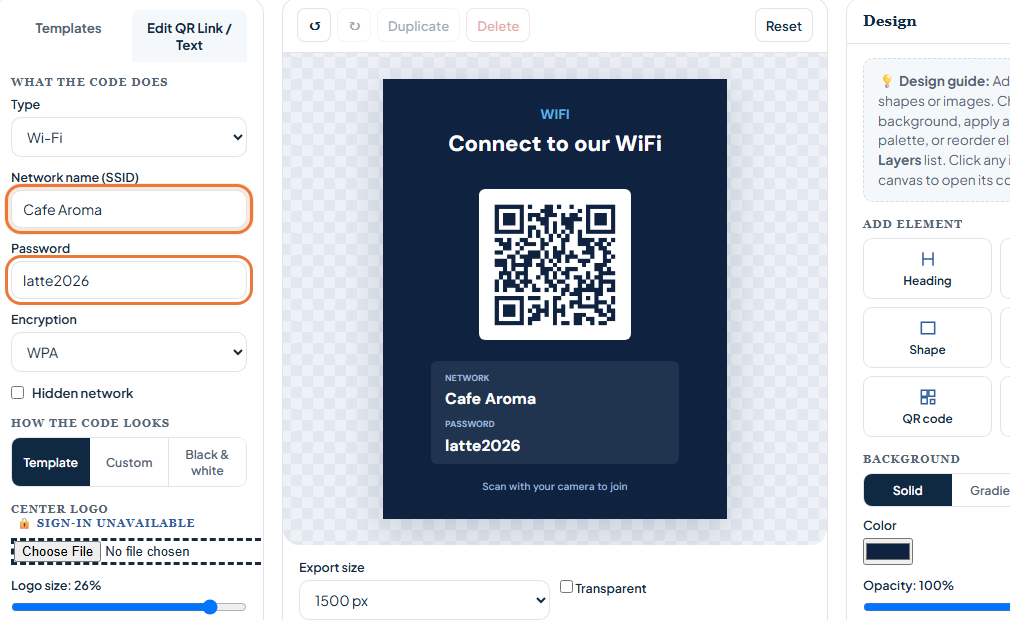
- Open the QR Code Generator with Wi-Fi selected. The button below opens the design studio with the Wi-Fi type and the Wi-Fi card template already loaded.
- Enter the network name and password. Type them exactly as they appear on your router. Choose WPA as the encryption unless your network has no password.
- Tick "Hidden network" only if your network is hidden. A hidden network does not appear in the list of nearby networks. Most are not hidden.
- Edit the card text. Double-click any text on the card to change it, for example to add your business name or "Scan to join our Wi-Fi".
- Test the code before you print it. Open the camera on your phone, point it at the code on your screen, and tap the prompt to join. If it joins, the code is correct.
- Download or print it. Download the card as a PNG, or use Print to send it straight to your printer.
Where to put your Wi-Fi QR code
- At home: on the fridge, in a guest room, or in a frame near the front door.
- In a cafe or shop: on each table, at the counter, or on a table tent.
- In an office: in the reception area and meeting rooms, pointing to the guest network.
- At a rental property: in the welcome folder, next to the house rules.
Printing tips so the code scans every time
- Keep it large enough. A code at least 2 cm (about 0.8 inches) wide scans well at arm's length. Make it bigger if people will scan from farther away.
- Keep strong contrast. A dark code on a light background scans most reliably. Avoid light colors on light paper.
- Leave a margin. Keep a clear border around the code so the camera can find its edges.
- Laminate it if it will be handled. Creases and stains can stop a code from scanning.
If the code does not work
- The phone sees the code but cannot join. The network name or password is probably wrong. Check capital letters, spaces and similar characters such as 0 and O, then make the code again.
- The phone does not react to the code. Move closer, add more light, and hold the phone steady. On an older phone, try a QR scanner app.
- It worked before and stopped. The Wi-Fi password was probably changed. Make a new code with the new password.