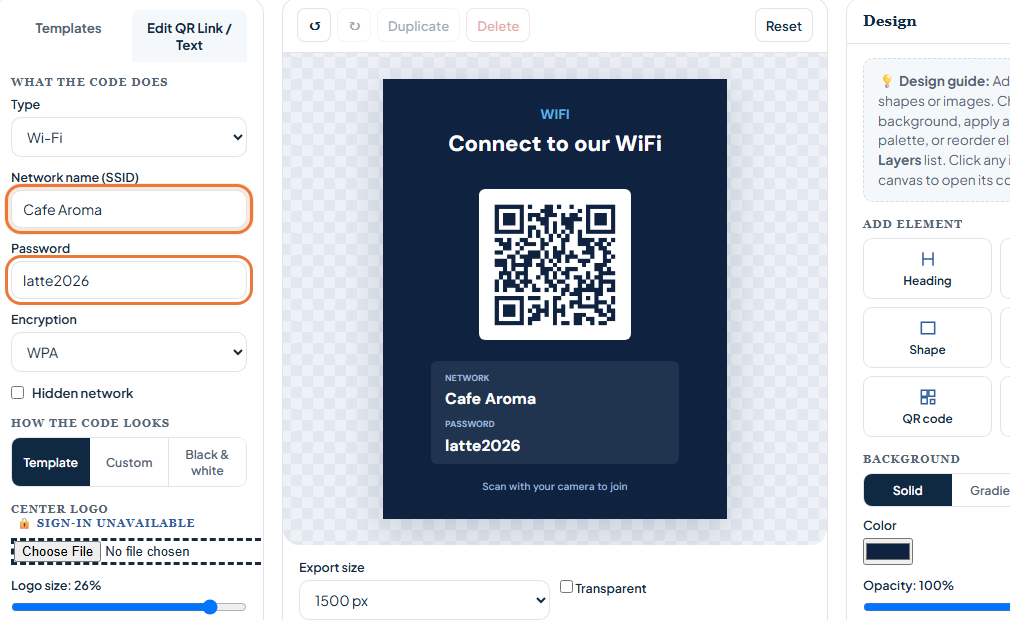
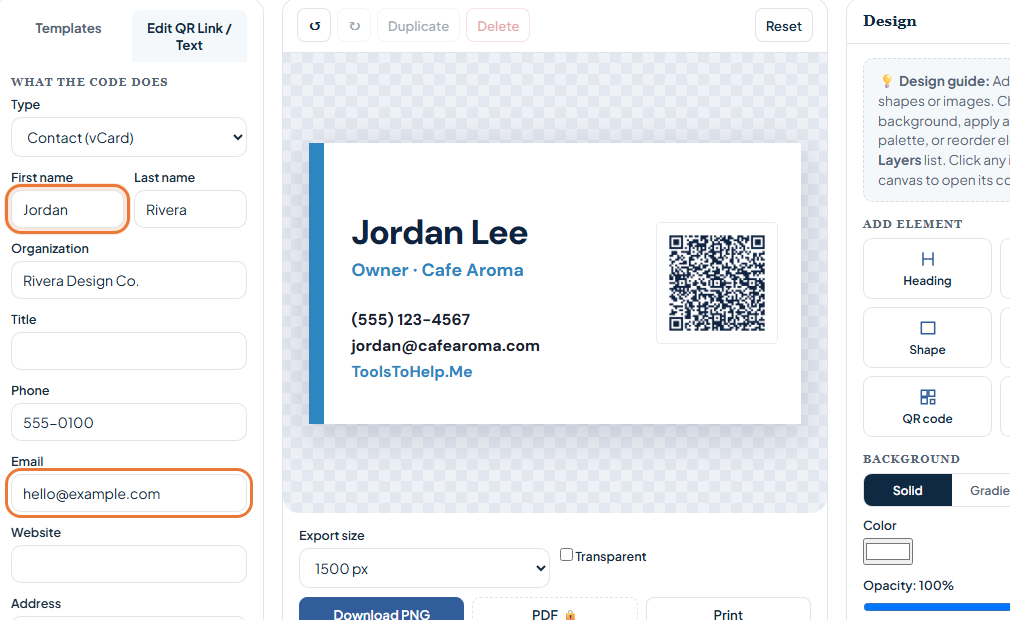
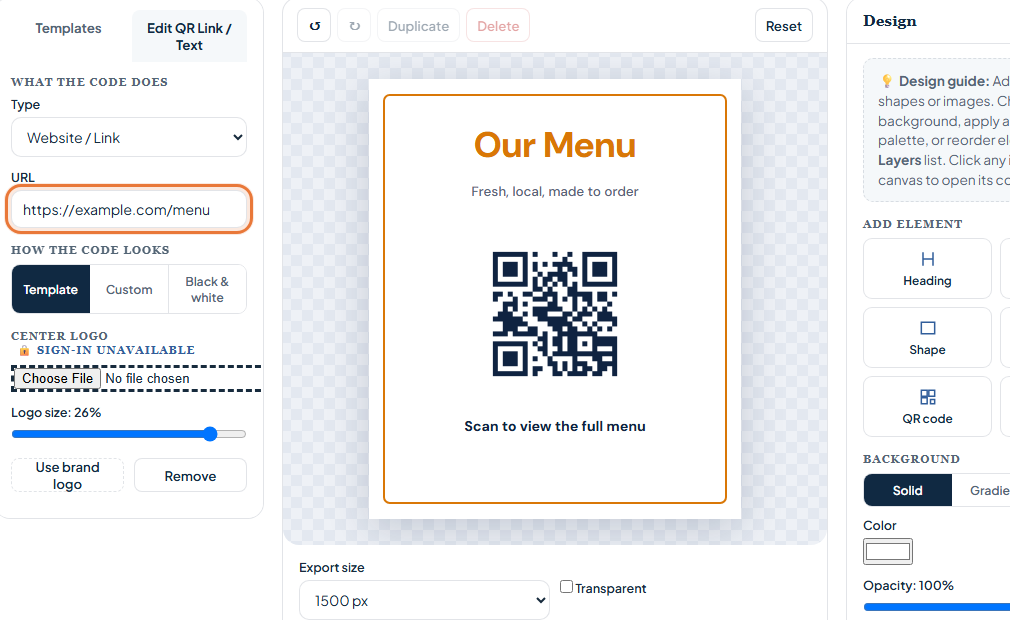
A QR code is a square barcode that a phone camera reads in an instant. Point the camera at it, and the phone shows a prompt: open a link, join a Wi-Fi network, save a contact, and more, depending on what the code holds.
This guide covers what a QR code can do, how to make one in under a minute with the free generator, and how the Design Studio adds templates, colors and a logo when you want more than a plain black-and-white square.
What a QR code holds
The QR codes made on ToolsToHelp.Me are static. The content you enter, a web address, a Wi-Fi password, a phone number, is encoded directly into the pattern of squares. There is no lookup step and no server in the middle deciding what happens when someone scans it.
That has two practical effects worth knowing before you print anything:
- It keeps working for as long as the underlying content is valid. A code that opens a web address keeps working as long as that address is live. There is no expiration built into the code itself.
- It cannot be edited or tracked after you print it. Because the content lives inside the pattern, changing the destination means making a new code and replacing the old one. There is no scan count or analytics dashboard attached to a static code.
For most everyday uses, a business card, a Wi-Fi network, a menu link, that is exactly what you want: a code that keeps working without ongoing fees or a subscription. If you know your content might change often, point the code at a link you control, such as your own web page, and update what that link shows instead of remaking the code.
Make a QR code in under a minute
 Inside QR Code Generator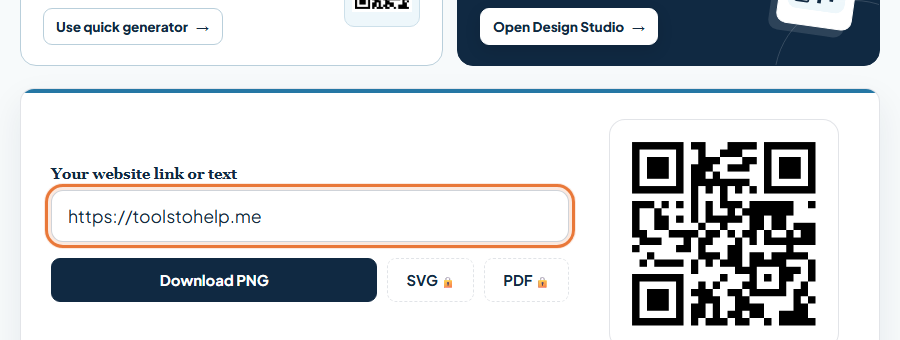
- Go to the QR Code Generator. Open toolstohelp.me/qr.html. The quick generator sits right at the top of the page.
- Paste your link. Paste the web address you want the code to open. The preview updates as you type.
- Download the PNG. Click download to save the code as a PNG image. This is free, with up to 10 downloads per day.
Using the Design Studio for templates and styling
The quick generator is the fastest way to a plain code. For a printed sign, a card or anything that needs to look designed, open the Design Studio from the same page.
The Design Studio adds:
- Templates. Ready-made layouts for business cards, table tents, Wi-Fi cards and more. Pick one, then double-click any text on it to change the wording.
- Dot shapes and colors. Square, rounded, dots, classy and extra-rounded dot styles, plus code and background colors, all free.
- A center logo, with a free account. Upload your logo and it sits in the middle of the code. Keep it small. A large logo can stop the code from scanning.
- SVG and PDF downloads, with a free account. The free PNG download covers most uses; SVG and PDF are there for print shops that ask for vector files.
- Saved designs, with a free account. A saved design is stored on our server, including anything you typed into it, and opens the same way on any device you sign in from.
Some templates in the gallery need a free account to use. The basics, colors, dot shapes and the core templates, are free.
What a QR code can hold
Beyond a plain web link, the generator supports:
- Website or link. Opens any web address.
- Plain text. Shows a block of text, useful for instructions or a short message.
- Email. Opens the phone's email app with the address, and optionally a subject, filled in.
- Phone number. Starts a phone call.
- SMS. Opens a text message to a number you set.
- Wi-Fi network. Joins a network without typing the password. See how to make a Wi-Fi QR code.
- Contact card (vCard). Saves a contact straight to the phone. See QR codes for a business card.
- Calendar event. Adds an event with a date, time and location.
- Map location. Opens directions to a set of coordinates.
Printing and testing tips
- Test before you print. Scan the code on your own phone first, from the screen, to confirm it does what you expect.
- Keep it large enough. A code at least 2 cm (about 0.8 inches) wide scans reliably at arm's length.
- Keep strong contrast. A dark code on a light background is the most reliable combination.
- Leave a margin. A clear border around the code helps the camera find its edges.
- Check the logo, if you added one. Scan the finished version again after adding a logo. If it stops working, shrink the logo or remove it.