An invoice is a request for payment. It tells your client what you did, what it cost, and when you expect to be paid. A clear invoice gets paid faster than a vague one, and it gives you a paper trail if a payment is ever disputed.
This guide covers what belongs on every invoice, how to number them, and how to send one and follow up if it goes unpaid.
What every invoice needs
Whatever software or template you use, an invoice needs the same core pieces:
| Field | What it is |
|---|---|
| Your details | Business or your name, address, email address and phone number. |
| Client details | The name and address of the person or business you are billing. |
| Invoice number | A unique number for this invoice, so it can be found again and never confused with another one. |
| Issue date | The date you are sending the invoice. |
| Due date | When you expect payment, based on your payment terms. |
| Line items | Each product or service, with a quantity and a rate. |
| Subtotal | The line items added together, before tax or discounts. |
| Tax, if it applies | Any sales tax, VAT or similar, calculated on the subtotal. |
| Total | The full amount due after tax and any discount. |
| Payment terms and methods | When payment is due and how your client can pay you. |
| Notes | Anything else your client needs: a thank-you, a purchase order number, or special instructions. |
On tax: whether you need to charge tax, and how much, depends on where you and your client are located and what you sell. Rules vary a lot by location. Check your local tax rules or ask an accountant before you set a tax rate. This guide is not tax advice.
Choosing an invoice numbering system
Pick one system and stick with it, so numbers never repeat and you can always find an invoice later.
- Sequential. 1001, 1002, 1003, and so on. Simple, and works well if you do not need to see the year or client at a glance.
- Date-based. 2026-001, 2026-002, restarting each year. Makes it obvious when an invoice was issued.
- Client-based. ACME-001, ACME-002 for a specific client, useful if you invoice a small number of clients often.
Whichever system you choose, never reuse a number, even for a cancelled invoice. Skip it and move on, so your records stay consistent if anyone ever checks them, including you.
Setting payment terms
Your payment terms tell the client when the money is due: due on receipt, or a set number of days after the invoice date. See invoice payment terms explained for the common options and how to choose between them.
Creating the invoice
 Inside Invoice Generator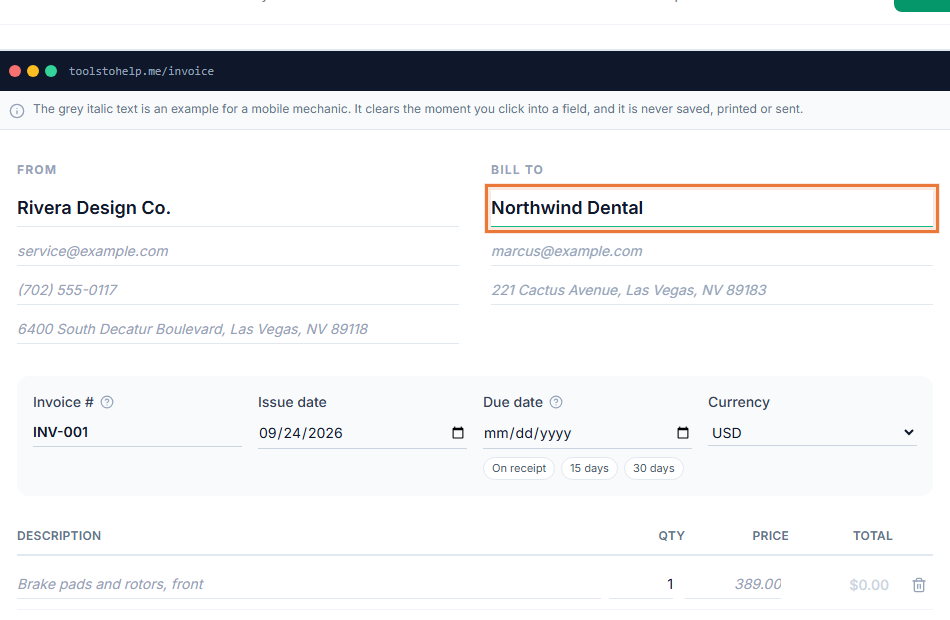
- Open the Invoice Generator. The builder at toolstohelp.me/invoice/ is open to everyone.
- Fill in your details and your client's. Your business information at the top, your client's billing details below it.
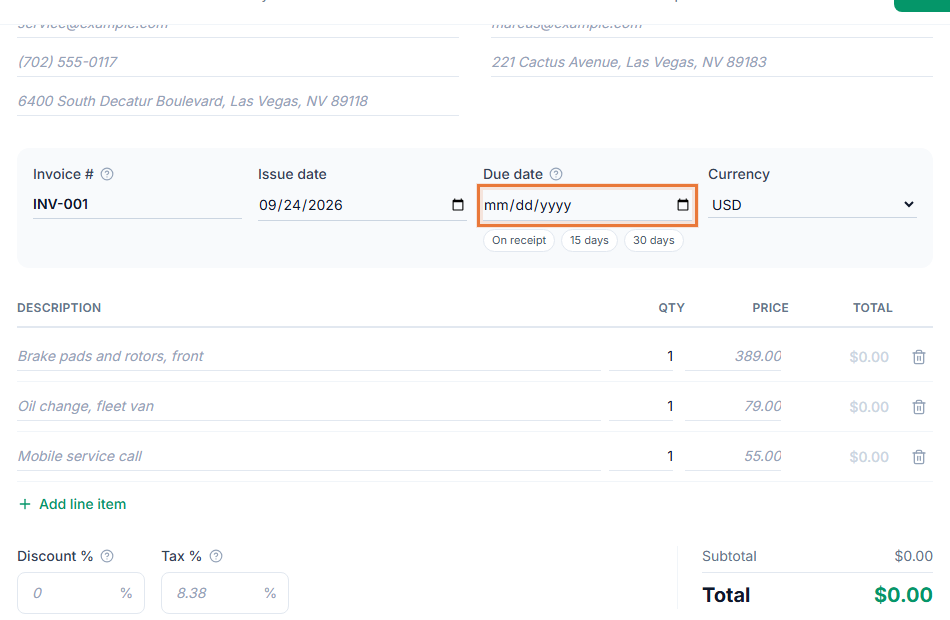
- Add your line items. Describe each product or service, with a quantity and a rate. The subtotal and total calculate as you type.
- Set the issue date, due date and any tax. Choose your payment terms and add a tax rate if one applies.
- Create a free account to save it. Saving the invoice and downloading the PDF both require a free account. Your work is saved while you create your account, so nothing you typed is lost.
- Get your shareable link. A saved invoice gets a link your client can open, read and, for an estimate, sign, directly from that link.
Sending the invoice
Automatic email delivery is not available in the builder yet. Copy the invoice link and send it from your own email address, along with anything else you would normally include: a thank-you, a reminder of the due date, or a note about how to pay.
If your work involves a signed agreement alongside the invoice, such as a scope of work or an estimate, you can sign a PDF and attach it, or send your client the invoice link, where they can sign an estimate directly if you sent one.
Following up on a late invoice
Most late payments are not a dispute, they are a due date that got missed in someone else's inbox. A short, polite follow-up on or just after the due date resolves most of them.
- Send a reminder close to the due date. A brief note restating the amount, the due date and the invoice link is usually enough.
- Follow up again if it passes the due date. Keep the tone professional. Restate the amount and ask when you can expect payment.
- Know your late fee policy before you need it. If you plan to charge a late fee, it needs to be stated on the original invoice or in your agreement with the client before you can apply it. See invoice payment terms for how late fees usually work and why local law matters.